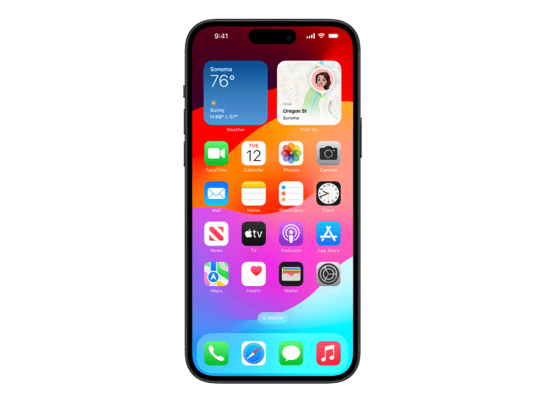
iOS 17.6.1 (21G93)
iPhone 15 Plus
iPhone15,5_17.6.1_21G93_Restore.ipsw
SHA1
b77631c0a6462e0dd9ded6c4f07d0e371b267a45
SHA256
e29c99258cbf2817a5967bc7042c09c5410a25e79d65631fdeb435fa40dbd2e1
MD5
851b5abc21dbadf88b98a75fba41107e
iOS 17.6.1 Release Notes
Emoji
- New mushroom, phoenix, lime, broken chain, and shaking heads emoji are now available in the emoji keyboard
- 18 people and body emoji add the option to face them in either direction
Apple Podcasts
- Transcripts let you follow an episode with text that highlights in sync with the audio in English, Spanish, French and German
- Episode text can be read in full, searched for a word or phrase, tapped to play from a specific point and used with accessibility features such as Text Size, Increase Contrast, and VoiceOver
This update includes the following enhancements and bug fixes:
- Music recognition lets you add songs you have identified to your Apple Music Playlists and Library, as well as Apple Music Classical
- Siri has a new option to announce messages you receive in any supported language
- Stolen Device Protection supports the option for increased security in all locations
- Battery Health in Settings shows battery cycle count, manufacture date, and first use on iPhone 15 and iPhone 15 Pro models
- Call Identification displays Apple-verified business name, logo, and department name when available
- Business updates in Messages for Business provide trusted information for order status, flight notifications, fraud alerts or other transactions you opt into
- Apple Cash virtual card numbers enable you to pay with Apple Cash at merchants that don’t yet accept Apple Pay by typing in your number from Wallet or using Safari AutoFill
- Fixes an issue where contact pictures are blank in Find My
- Fixes an issue for Dual SIM users where the phone number changes from primary to secondary and is visible to a group they have messaged
Some features may not be available for all regions or on all Apple devices. For information on the security content of Apple software updates, please visit this website:
https://support.apple.com/kb/HT201222
How to Restore iOS 17.6.1 IPSW
🖥
iTunes (Windows / macOS Mojave and older) & Finder (macOS Catalina+)
- Download the iPhone15,5_17.6.1_21G93_Restore.ipsw file to your computer.
- Connect your iPhone 15 Plus to your computer with a USB cable.
- Open Finder (macOS Catalina+) or iTunes (Windows / older macOS) and select your device.
- To Update (keeps data): hold Option (Mac) or Shift (Windows) and click Check for Update.
- To Restore (erases data): hold Option (Mac) or Shift (Windows) and click Restore iPhone/iPad.
- Navigate to and select the downloaded .ipsw file, then confirm.
- Wait for the process to complete — do not disconnect the device.
⚠️ Note: This firmware is no longer signed by Apple. iTunes/Finder may reject the restore. Use a tool like futurerestore if you have saved blobs.
⌨️
idevicerestore (Command Line)
An open-source command-line tool that restores IPSW files without needing iTunes. Useful for advanced users, automation, and custom restore workflows.
- Install via Homebrew:
brew install idevicerestore
- Connect your device and put it into DFU mode.
- Run the restore command:
idevicerestore -t iPhone15,5_17.6.1_21G93_Restore.ipsw
Common flags:
-eErase restore (factory reset)
-uUpdate restore (keep data)
-dEnable debug output
-nDry-run — don't actually restore
🔓
futurerestore (Saved Blobs / Downgrade)
futurerestore allows restoring to unsigned firmware like this one when you have saved APTickets (blobs) from a tool like TSSSaver or shsh.host.
- Download futurerestore from github.com/futurerestore/futurerestore.
- Ensure you have a saved .shsh2 blob for iOS 17.6.1 (21G93) on your iPhone 15 Plus.
- Put your device into DFU mode and run:
futurerestore -t your_blob.shsh2 --latest-sep --latest-baseband iPhone15,5_17.6.1_21G93_Restore.ipsw
⛔ Warning: Using --latest-sep requires the latest SEP to be compatible with iOS 17.6.1. Always verify compatibility before restoring to avoid a bricked device.
📲
Entering DFU Mode
DFU (Device Firmware Update) mode is required for most manual restores. The button combination varies by device:
iPhone 8 / X and later / iPad with Face ID
Press & release Volume Up → press & release Volume Down → hold Side button until screen goes black → hold Side + Volume Down for 5 s → release Side but keep Volume Down for 10 s.
iPhone 7 / 7 Plus
Hold Side + Volume Down for 8 s → release Side but keep Volume Down for 10 s.
iPhone 6s and earlier / iPad with Home button
Hold Home + Sleep/Wake for 8 s → release Sleep/Wake but keep Home for 10 s.
💡 Tip: In DFU mode the screen stays completely black. If you see the Apple logo or a "Connect to iTunes" screen, you entered Recovery mode instead — try again.
⇓ Download IPSW Firmware (7.53 GB)